

How to add a discount to a Feature ?
Context
Section titled “Context”If you want to reduce the amount of a subscription, you can simply apply a discount to it.
If you want this discount to apply only to a specific feature of the subscription, you just need to specify it when applying the discount.
Prerequisites
Section titled “Prerequisites”- You must have already created an offer or a subscription.
- The feature to which you want to apply the discount must be present in this offer or subscription.
Procedure
Section titled “Procedure”1. Go to the offer page
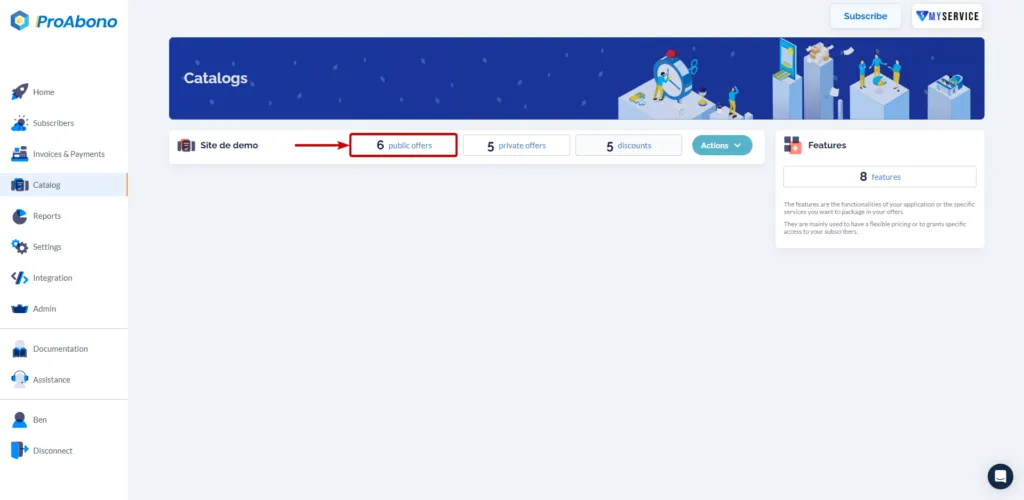
Section titled “1. Go to the offer page”- Click on “Catalog” from the left menu.
- Click on your public offers.
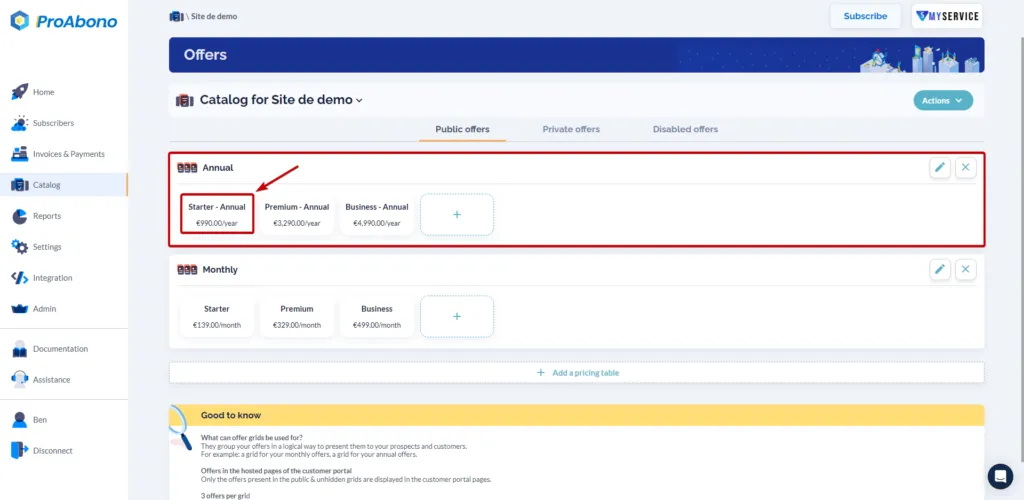
In this example, we will select our Starter offer, which is an annually offer at 990€.
2. Open the modification page
Section titled “2. Open the modification page”Once on the offer page:
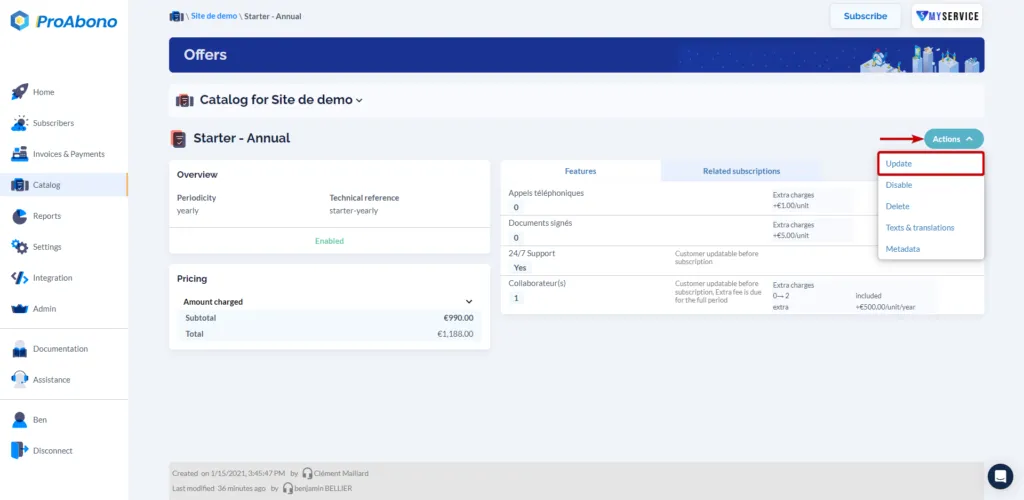
- Open the “Actions” menu
- Click on the “Update” button
3. Add the discount
Section titled “3. Add the discount”Once on the offer editing page:
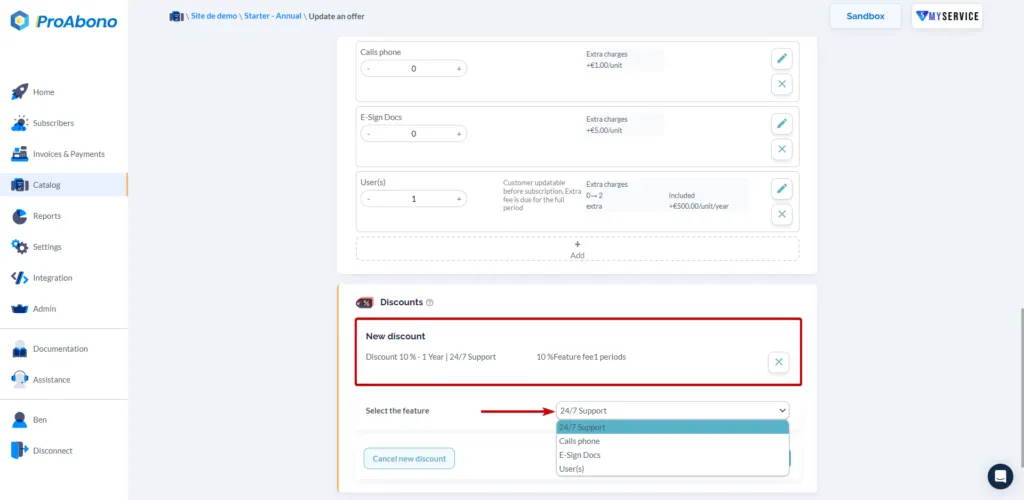
- Scroll down to the discount section (just below the features)
- Click on the “Add” button.
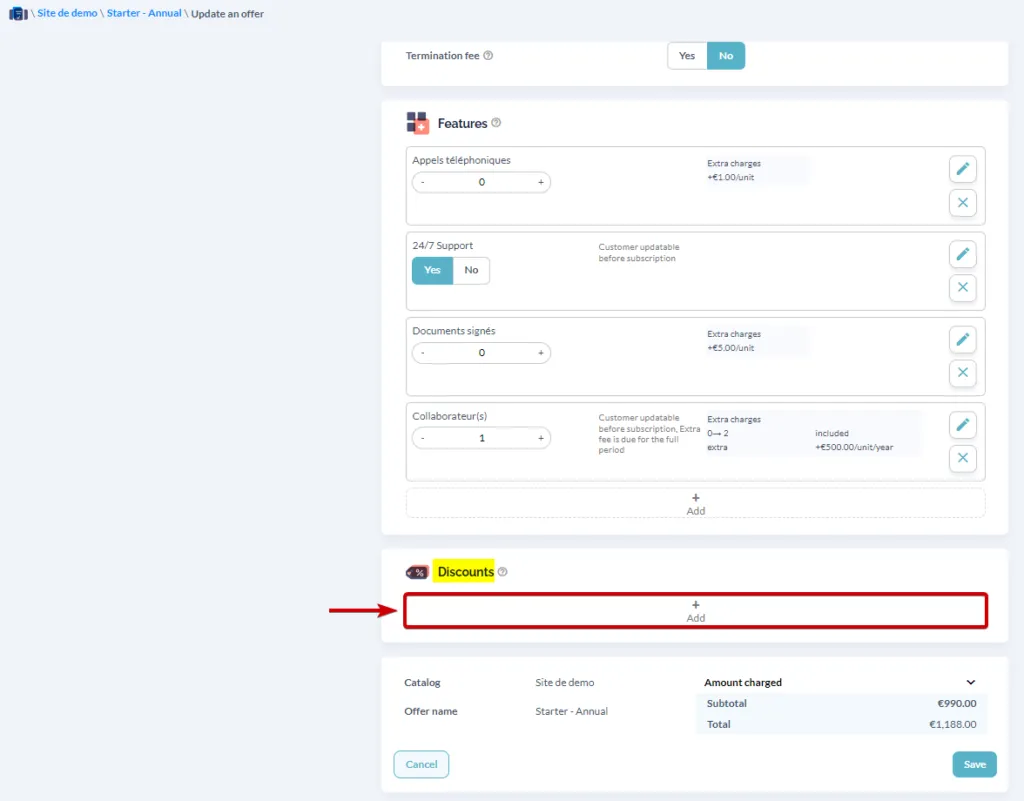
- Select the discount you want to apply and the feature to which it should be applied.
4. Save the changes
Section titled “4. Save the changes”Remember to click on the “Save” button to finalize your modifications.
The discount is now successfully added to your offer, and you can see the information on the offer page.
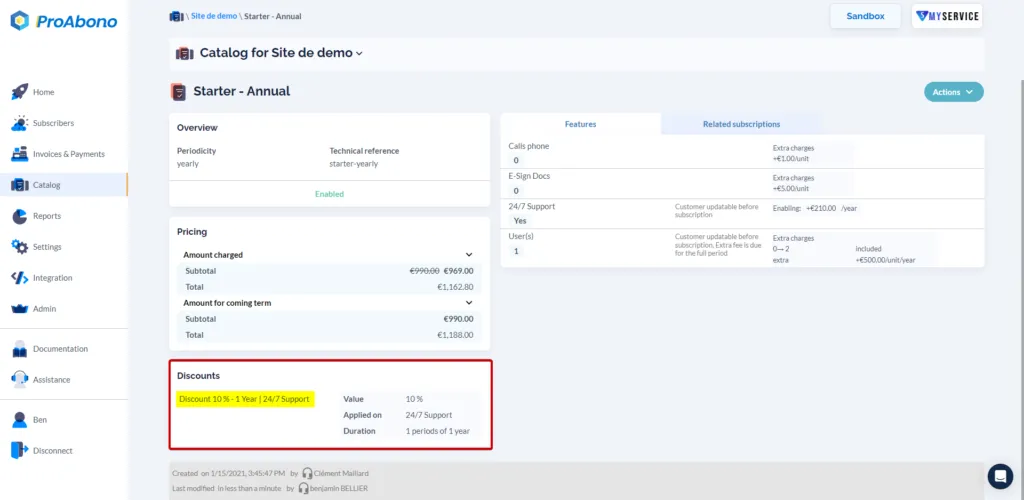
A discount is now applied to the “24/7 Support” feature of our Starter Offer