

Mark an invoice as ‘Paid’
Context
Section titled “Context”If an invoice is in the “payment due” state and the payment method is non-automatic (bank transfer, check, cash, other), it is your responsibility to provide us with confirmation that the invoice has been paid since ProAbono has no way of knowing if the invoice has been paid.
Procedure
Section titled “Procedure”1. Choose an invoice
Section titled “1. Choose an invoice”- Click on “Subscribers” from the left menu.
- Select the relevant invoice.
2. Open the payment recording form
Section titled “2. Open the payment recording form”- Open the “Actions” menu.
- Click on the “Proceed to payment” button.
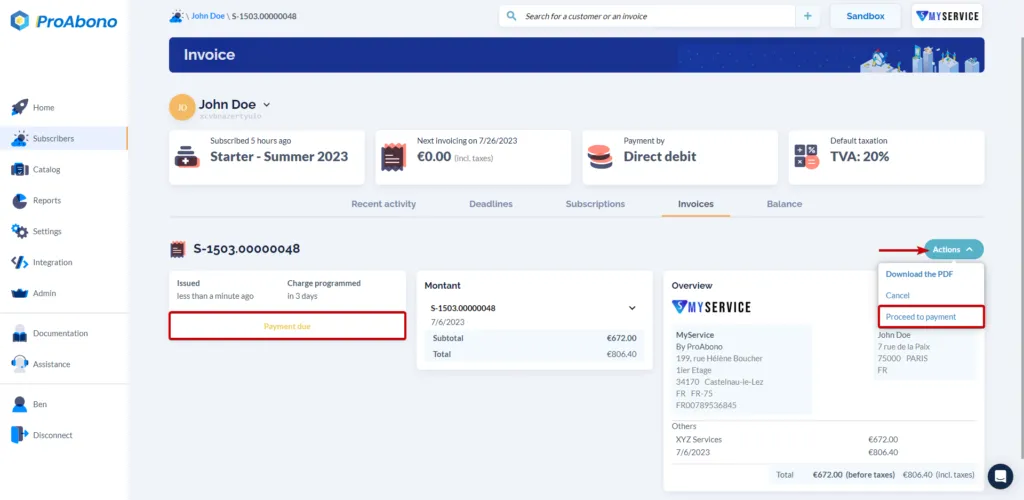
3. Choose the way you want to proceed to mark as “Paid” this invoice.
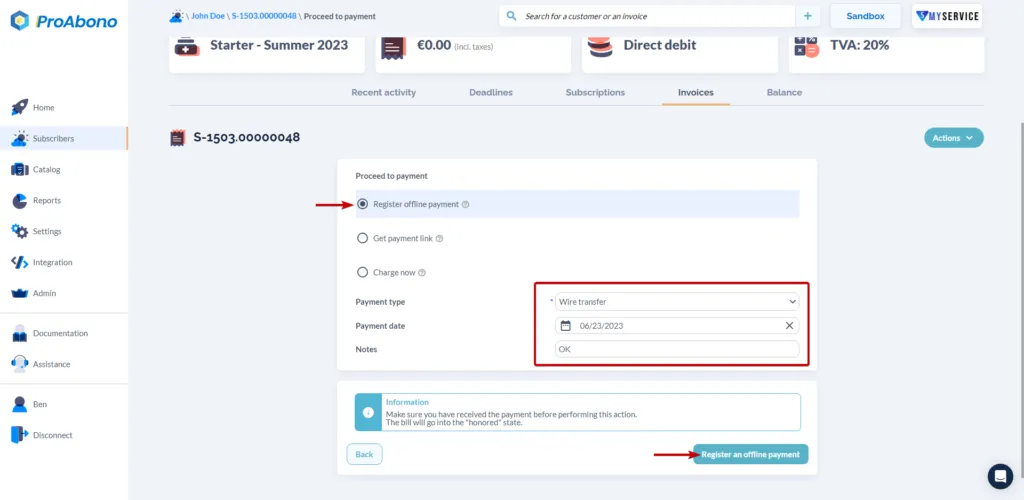
Section titled “3. Choose the way you want to proceed to mark as “Paid” this invoice.”Select the option between :
- “Register offline payment”.
- Specify the payment method (bank transfer, cash, check, other).
- Indicate the payment date.
- You can add additional information in the “Notes” field (e.g., information for the accountant). This data can be retrieved via API or exported as a CSV file.
- “Get payement link”
- Send a link to your customer to let them pay the bill themselves
- “Charge now”
- Trigger a new direct debit to automatically collect the amount of the invoice.
4. Confirm the payment recording
Section titled “4. Confirm the payment recording”- Click on the “Register offline payment” button.
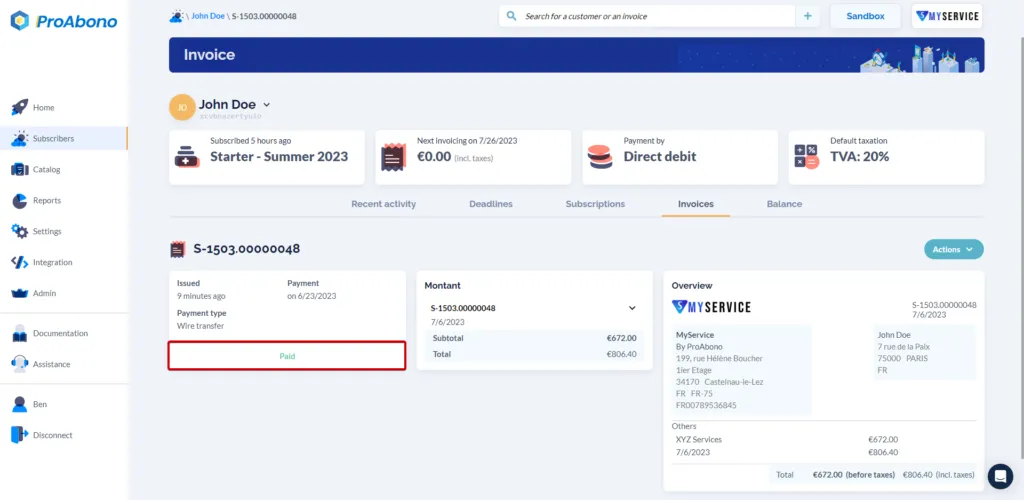
If everything went well, the invoice will change from the “Payment due” state to the “Paid” state.
Further Steps
Section titled “Further Steps”- Send a payment link to your customer.
- How to trigger the collection of an invoice?