

How to set a Google Font in hosted pages ?
Context
Section titled “Context”Once you have integrated the hosted pages into your application, you may want to customize/modify the font of the texts to align with your own website/application.
This is completely possible.
To use a specific Google Font in the hosted pages (customer portal or subscription workflow), you just need to add the chosen font in the CSS.
Procedure
Section titled “Procedure”1. Open the CSS editing menu
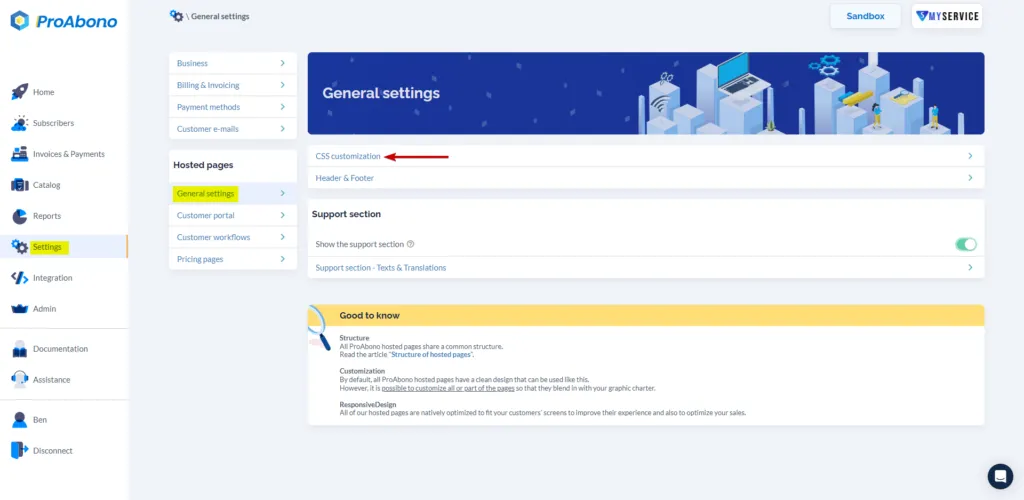
Section titled “1. Open the CSS editing menu”- Click on “Settings” from the left menu.
- Then click on “General Settings” in the “Hosted Pages” section.
- Next, click on “Custom CSS”.
2. Add the chosen font
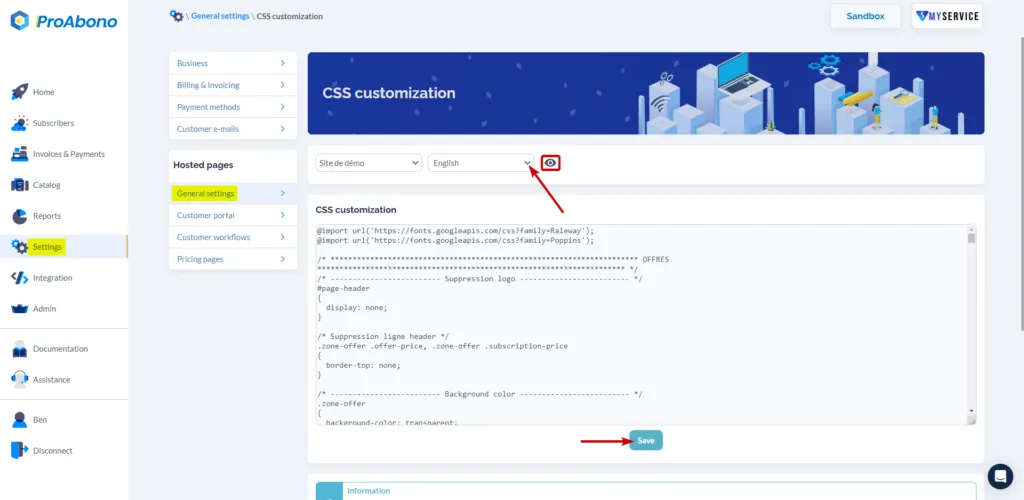
Section titled “2. Add the chosen font”- Select the language in which you want to add the font.
- Add the following code snippet: @import url(‘https://fonts.googleapis.com/css?family=**NameOfTheFont**’) ;
- Replace “NameOfTheFont” with the name of the font you want to add.
Example:
@import url(‘https://fonts.googleapis.com/css?family=Raleway’);
@import url(‘https://fonts.googleapis.com/css?family=Poppins’);
3. Save
Section titled “3. Save”- Click on “Save” to save your modifications.
- Click on the “Apply now” button to refresh the caches and apply your modifications immediately.