

How to change Plan ?
Context
Section titled “Context”The plan change feature allows you to easily transition an active subscription of one of your customers to a new subscription based on an existing offer from your catalog.
The plan change can be done immediately or at the next renewal (at the end of the current period of the customer’s current subscription).
To learn more about offer changes, please refer to the article: plan change.
1. Procedure
Section titled “1. Procedure”1. Go to the Subscribers section.
Section titled “1. Go to the Subscribers section.”- Click on the “Subscribers” button from the left menu.
- Select the relevant subscription.
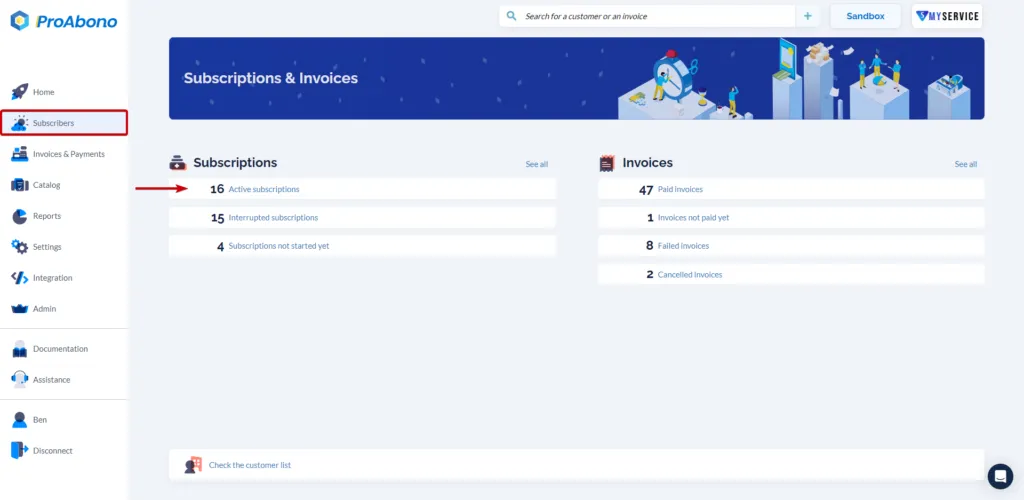
2. Access the offer change form
Section titled “2. Access the offer change form”- Click on the “Actions” button on the detailed page of the subscription on which you want to perform the offer change.
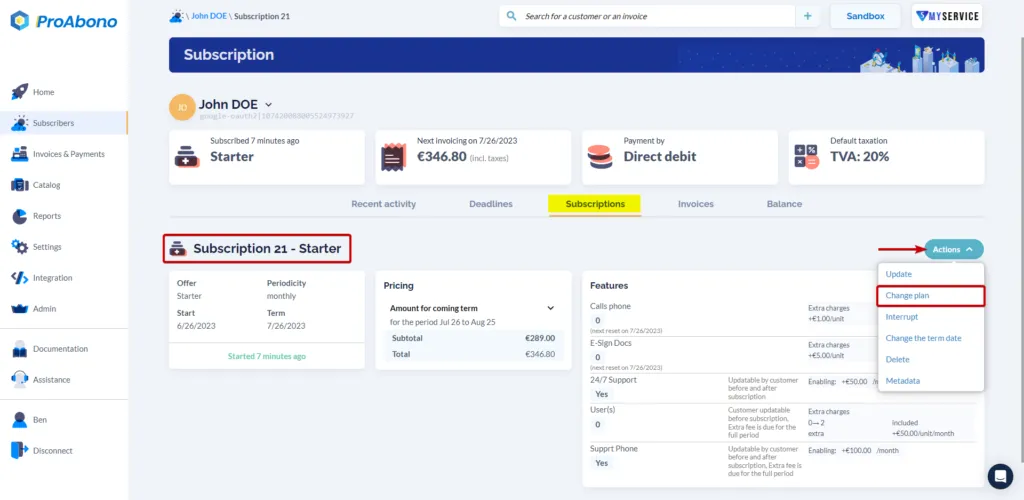
3. Set up the offer change.
Section titled “3. Set up the offer change.”Once in the offer change editing menu, you will be able to:
- Choose the offer to which you want to switch the current subscription of your customer.
- Customize all the elements that compose it to create a tailored subscription for your customer (optional, you can also simply keep the offer in its initial configuration)
- Choose when the offer change will take effect:
- Immediately
- At renewal (At the end of the current period)
4. Confirm
Section titled “4. Confirm”- Simply click on “Save” at the bottom of the page to apply the offer change.
- Depending on your chosen effective date, the new subscription will be:
- Active
- Scheduled to become Active at the end of the current period.
2. Using the API
Section titled “2. Using the API”You can also use the API to perform a plan change.