

How to install the ProAbono Widget
Context
Section titled “Context”A widget is a user interface element that can be used to display or interact with specific information or features. Widgets are typically small in size and are placed on the home screen or an application page to provide quick access to commonly used information or features.
The ProAbono widget is a standalone and intelligent application that you can add to your website’s code.
It appears as a thumbnail that opens an interactive interface displaying real-time information related to the connected customer’s subscription.
Why install the ProAbono Widget?
- To quickly set up your subscription-based business.
- To enable self-service subscription in your application.
- To quickly have essential subscription management elements for your users.
- To avoid coding and re-coding this part if you have a different language, currency, or need to adjust your offers.
Procedure
Section titled “Procedure”This installation will display a widget to your logged-in users so that they can subscribe to your offers.
Here’s how to install the widget in any web application.
1/ Go to the Integration section.
Section titled “1/ Go to the Integration section.”- Click here to access your widget section in your ProAbono back office
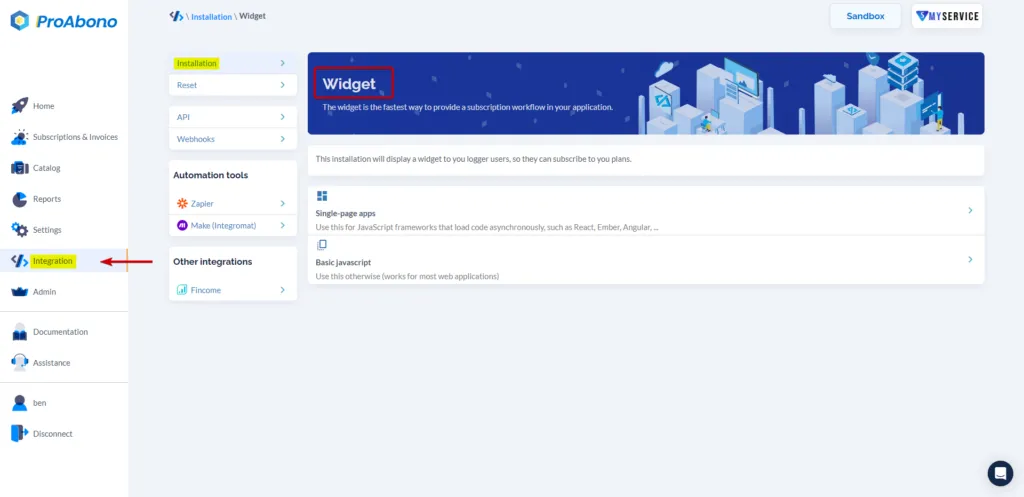
- Select your installation type: “Single apps application” or “Basic JavaScript”
- Retrieve the widget code.
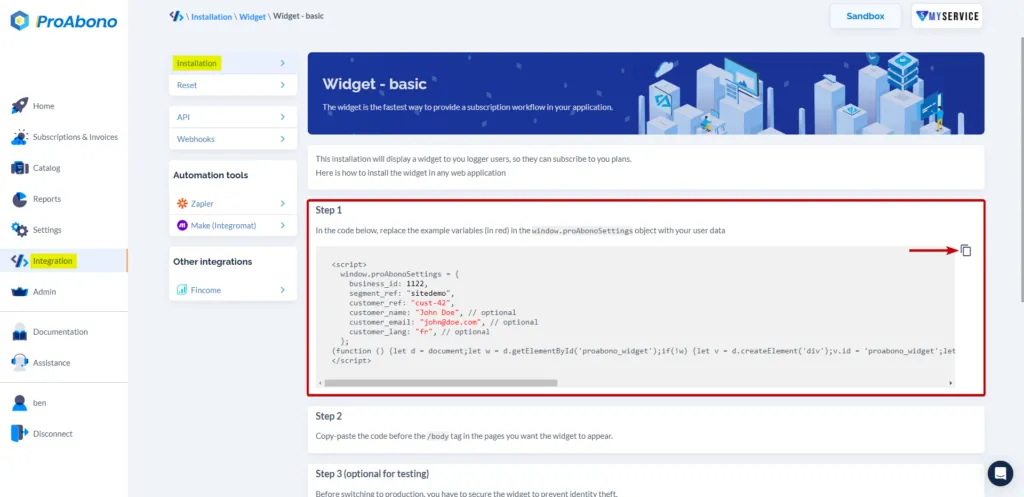
2/ Customize the widget data
Section titled “2/ Customize the widget data”In this code, replace the example variables (in red) with your user’s data, within the object window.proAbonoSettings.
<script>window.proAbonoSettings = {business_id: 1067,segment_ref: "EUR",customer_ref: "cust-42",customer_name: "John Doe", // optionalcustomer_email: "john@doe.com", // optionalcustomer_lang: "fr", // optional};</script>3/ Copy the code with the variables into your application
Section titled “3/ Copy the code with the variables into your application”Copy and paste this code before the tag on all pages where the widget should appear.
4/ Secure the Widget (optional in sandbox)
Section titled “4/ Secure the Widget (optional in sandbox)”Before going into production, you must secure the widget to prevent identity theft.
To do this, you need to generate a security hash for the connected user and add it to the window.proAbonoSettings object (see step 1).
<script>window.proAbonoSettings = { ... hash: "29d8b6e5edab22dccac0d60bd3377a2349331e314e752d6bf0731e7c3c22bc29"};</script>How to generate the security hash ?
The security hash for a customer is generated using the HMAC-256 algorithm, based on a secret key and the customer’s reference.
For more details on securing the ProAbono Widget, log in to your ProAbono back office and go to the Integration section.
Click on Installation > Widget > Basic Widget.
You will find a module to help you create the security hash and a verifier to test the security hash.