

How to implement integrated purchasing ?
Concept
Section titled “Concept”In a SaaS application, in-app purchases work the same way they do in mobile apps: they allow customers to instantly upgrade their usage or enable paid features without leaving their current workflow.
Instead of forcing users to navigate to a dedicated “My subscription” page, you let them take action exactly when they need it. This significantly improves user experience while increasing your revenue.
Typical examples (adapt to your own business model):
A user performs an action that may generate an additional cost:
- adding a new team member
- requesting an electronic signature
- enabling 24/7 support
With a single API call to ProAbono, you can:
- calculate the immediate extra cost (if any)
- compute the new subscription price after the change
You then display this information to the user and ask for confirmation. This confirmation step is mandatory and protects you from future billing disputes.
[caption id=“attachment_1019” align=“aligncenter” width=“465”]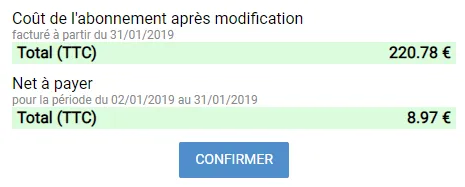
Example of user-facing pricing confirmation[/caption]
If the user clicks Confirm, your application simply confirms the change via the ProAbono API. ProAbono then automatically handles billing and invoicing.
The key benefit is that the user never has to leave their current context, resulting in a much smoother and more intuitive experience.
Additional benefits
If the user has unlimited access or if the change does not generate any extra cost, the API returns a price of 0. In this case, asking for confirmation is usually unnecessary.
If the change is billable, the API response also allows you to detect the following situations:
-
the user has no payment method on file
-
the user has too many unpaid invoices
-
the user does not have access to this feature
Depending on the case, you can display a clear message with a link to add a payment method or upgrade the subscription plan.
Implementation workflow
Section titled “Implementation workflow”Implementing in-app purchases with ProAbono is a simple two-step process.
1/ Compute the pricing impact
Section titled “1/ Compute the pricing impact”The first API call, Compute pricing usage, is used to validate the request and calculate the potential extra cost.
Example:
Section titled “Example:”POST /v1/Pricing/Usage?referenceCustomer=cust_1&referenceFeature=team-members{ "Increment": 2, "DateStamp": "2018-12-31T15:31:00.00Z", "NextTerm": true}API response:
Section titled “API response:”{ "IdSegment": 7, "IdCustomer": 406146, "IdSubscription": 286407, "IdFeature": 6915, "ReferenceSegment": "dev", "ReferenceCustomer": "cust_1", "ReferenceFeature": "team-members", "LabelLocalized": "Amount due", "PricingLocalized": "€8.97", "Currency": "EUR", "AmountSubtotal": 748, "AmountTotal": 897, "DatePeriodStart": "2019-01-02T15:33:00.00Z", "DatePeriodTerm": "2019-01-31T15:29:27.00Z", "Details": [...], "NextTerm": { "LabelLocalized": "Subscription price after update", "PricingLocalized": "€220.78", "AmountSubtotal": 18399, "AmountTotal": 22078 }}ProAbono automatically returns localized labels and prices (language and currency), both for:
- the immediate amount to be charged
- the subscription price for the next billing period
[caption id=“attachment_1019” align=“aligncenter” width=“465”]
Example of pricing data displayed to the user[/caption]
2/ Confirm the usage update
Section titled “2/ Confirm the usage update”Once the user has confirmed the change, call the Update usage endpoint to apply it.
Example:
Section titled “Example:”POST /v1/Usage?referenceCustomer=cust_1&referenceFeature=team-members{ "IdSegment": 7, "IdFeature": 6915, "IdCustomer": 406146, "IdSubscription": 286407, "ReferenceSegment": "dev", "ReferenceFeature": "team-members", "ReferenceCustomer": "cust_1", "TypeFeature": "Limitation", "QuantityIncluded": 3, "QuantityCurrent": 9, "DatePeriodStart": "2018-12-31T15:29:27.00Z", "DatePeriodEnd": "2019-01-31T15:29:27.00Z"}If the request succeeds, the API returns the updated usage values.
3/ Handle edge cases
Section titled “3/ Handle edge cases”The pricing API also allows you to detect cases where the change is not allowed. These situations should be handled explicitly to keep the user autonomous.
In such cases, the HTTP response always includes:
- an HTTP status code (403 or 404)
- a unique error code
Common scenarios:
Feature not available
HTTP 404 – Error.Api.Usage.NoneMatching
The user’s subscription does not include this feature.
Recommended action: suggest upgrading the plan.
No payment method
HTTP 403 – Error.Customer.PaymentSettings.Missing
The change is billable, but no payment method is configured.
Recommended action: display a link to add a payment method.
Too many unpaid invoices
HTTP 403 – Error.Customer.Billing.CappingReached
The user has exceeded your unpaid invoice threshold.
Recommended action: ask the user to settle outstanding invoices.